
How to Install Mod Skin LOL for Custom Skins |update 2025
Want to give your League of Legends champions a fresh look without spending a dime? Mod Skin LOL lets you do just that—customize your champions with unique skins. Here’s how you can install it step by step.
What Is Mod Skin LOL?
Mod Skin LOL is a third-party tool introduced in 2015 that allows players to apply custom skins to their champions in League of Legends. Since the game doesn’t have a built-in feature for custom skins, Mod Skin LOL fills this gap, providing an easy and free way for players to personalize their champions.
How to Use Mod Skin LOL
Download and Install CSLOL Manager
CSLOL Manager is a free, open-source tool for managing custom skins. You can download it from the official website.
Obtain Custom Skin Files
Browse trusted sources like Runeforge or Skin Empire to find custom skins. These sites offer a variety of skins for different champions.
Add Skins to CSLOL Manager
Open CSLOL Manager and click on “Add Mod.” Select the downloaded skin file, and the tool will automatically inject the skin into your League of Legends directory.
Launch League of Legends via CSLOL Manager
To ensure the custom skins load correctly, always start League of Legends through CSLOL Manager. Click “Run” in CSLOL Manager to launch the game.
Enjoy Your Custom Skins
Once in-game, select the champion with the custom skin applied. Enjoy your personalized League of Legends experience!
Important Considerations
Visual Only: Custom skins are purely cosmetic and do not affect gameplay.
Single-Player Visibility: Only you can see the custom skins; other players will see the default skins.
Safety First: Always download tools and skins from reputable sources to avoid malware.
Legal Note: Using custom skins is against Riot Games’ Terms of Service. Use them at your own risk.
Troubleshooting Tips
Even though Mod Skin LOL is easy to use, there can be some hiccups. Here are a few troubleshooting tips:
Game Crashes: If your game crashes after applying a skin, make sure you’re using the correct version of Mod Skin LOL for your game version.
Skin Not Showing: If the skin isn’t appearing, double-check if the skin file is correctly loaded into Mod Skin LOL.
Compatibility Issues: Sometimes, skins may not work after a new game update. Ensure your skins are updated or compatible with the latest patch.
Tips for a Smooth Experience
Backup Game Files: Before installing custom skins, back up your game files to prevent any potential issues.
Use One Skin per Champion: Applying multiple skins to the same champion can cause glitches.
Stay Updated: Regularly check for updates to Mod Skin LOL and your custom skins to ensure compatibility with the latest game patches.
How to Manage Your Custom Skins
Managing your custom skins is essential to avoid performance issues or crashes. Here’s how to keep things organized:
Organize Your Files: Store your custom skins in a dedicated folder so you can easily find and manage them.
Remove Unwanted Skins: If you don’t use a particular skin anymore, make sure to remove it to keep your Mod Skin LOL directory clean and improve performance.
Update Skins Regularly: As League of Legends updates, some skins may become outdated. Ensure you’re using the latest versions for compatibility.
How to Find More Custom Skins
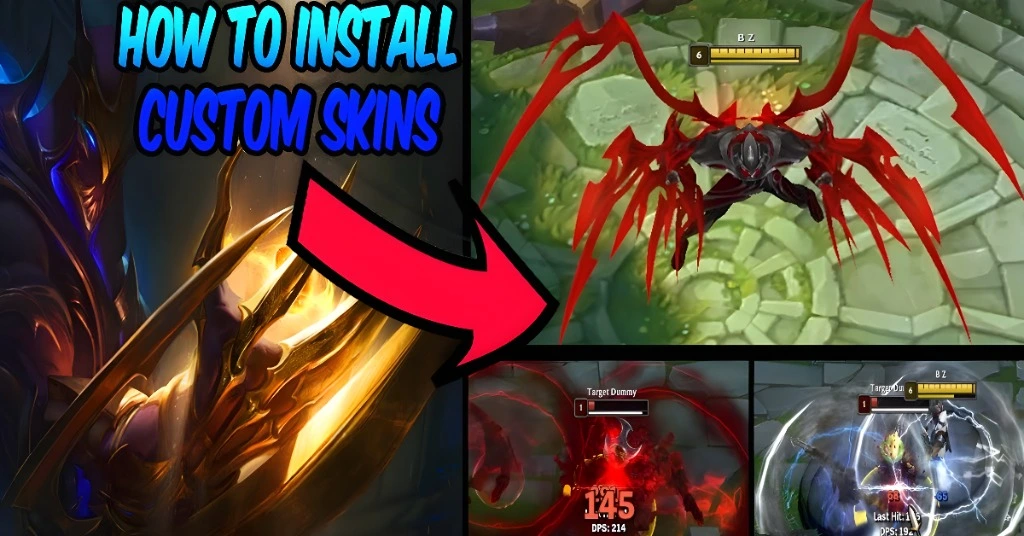
Looking for more custom skins to enhance your game? Here are a few ways to find new skins:
Community Websites: Check out popular community-driven sites like Runeforge and Skin Empire for fresh, community-created skins.
YouTube Tutorials: Some YouTubers share exclusive skins and provide detailed guides on how to install them.
Social Media Groups: Join League of Legends modding groups on platforms like Discord or Reddit for recommendations on the best skins.
FAQs
Final Words
Using Mod Skin LOL can be a fun way to personalize your League of Legends experience without any complicated setup. Just follow the easy steps, and you’ll be able to enjoy a whole new look for your favorite champions. Remember to prioritize safety and be aware of the potential risks associated with third-party tools. Most importantly, keep things fun, and don’t forget that custom skins are for visual enjoyment, not competitive advantage!