
If you’ve installed Mod Skin LOL and no longer wish to use it, or if you’re encountering issues with the tool, it’s important to know how to completely remove it from your system. Uninstalling Mod Skin LOL is a straightforward process, but you’ll want to ensure that all files associated with it are properly deleted to avoid any conflicts with League of Legends. Below is a step-by-step guide to remove Mod Skin LOL and revert your game to its original state.
How to Uninstall Mod Skin LOL
Close the Application
Before beginning the removal process, make sure Mod Skin LOL is not running. Ensure that the application is completely closed to avoid interference during the uninstallation.
Delete the Mod Skin LOL Files
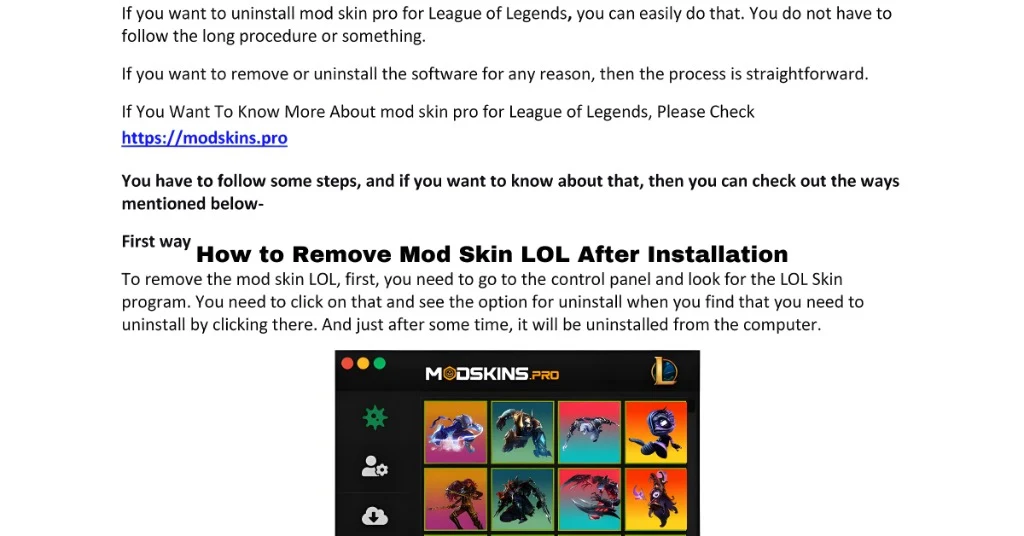
Navigate to the folder where Mod Skin LOL was installed. Typically, this will be the directory where you extracted the tool. Delete the entire folder to remove all associated files from your system. This ensures that no remnants of the tool remain.
Remove Custom Skin Files from League of Legends Directory
Custom skins are often stored within the League of Legends game directory. To completely remove them:
Locate and delete any folders corresponding to the custom skins you applied.
Go to the League of Legends installation folder.
Navigate to \Riot Games\League of Legends\game\DATA\Characters\.
This step ensures that no custom skin files remain in the game directory and your game will revert to its default skins.
Verify Integrity of Game Files
If you want to ensure that League of Legends is fully restored to its default state after removing Mod Skin LOL, it’s a good idea to verify the integrity of the game files. Here’s how:
Open the League of Legends client.
Go to the settings or options menu.
Look for an option to “Repair” or “Verify” the integrity of game files.
Follow the prompts to allow the client to check and restore any missing or altered files.
This will help restore the game to its original state by replacing any altered files with the official versions.
Additional Tips for Clean Removal
If you want to ensure that Mod Skin LOL is completely removed and there are no residual issues, consider these extra steps:
Sometimes, custom skins leave cache files behind. Clearing the cache in your League of Legends settings can help ensure everything is fully restored to default.
If you’re still facing issues after removing Mod Skin LOL, a clean reinstall of League of Legends will reset everything to its default state, removing any lingering changes.
Important Considerations When Removing Mod Skin LOL
Riot Games’ Terms of Service: Removing Mod Skin LOL is important if you’re concerned about violating Riot Games’ Terms of Service. Even though custom skins are cosmetic, using third-party tools to modify game files can still lead to penalties.
Restoring Default Skins: After removing Mod Skin LOL, verifying the game files helps restore any default skins you may have altered during the modding process.
FAQs
Final Words
Removing Mod Skin LOL is a simple process, but it’s important to follow the steps carefully to ensure that all files are completely removed and your game is restored to its original state. While custom skins can enhance your gaming experience, using third-party tools comes with risks, including potential penalties from Riot Games. If you choose to use Mod Skin LOL, always be aware of the consequences and take the necessary precautions to avoid issues.
By following the steps outlined above, you can safely remove Mod Skin LOL and return your League of Legends to its default settings without hassle.